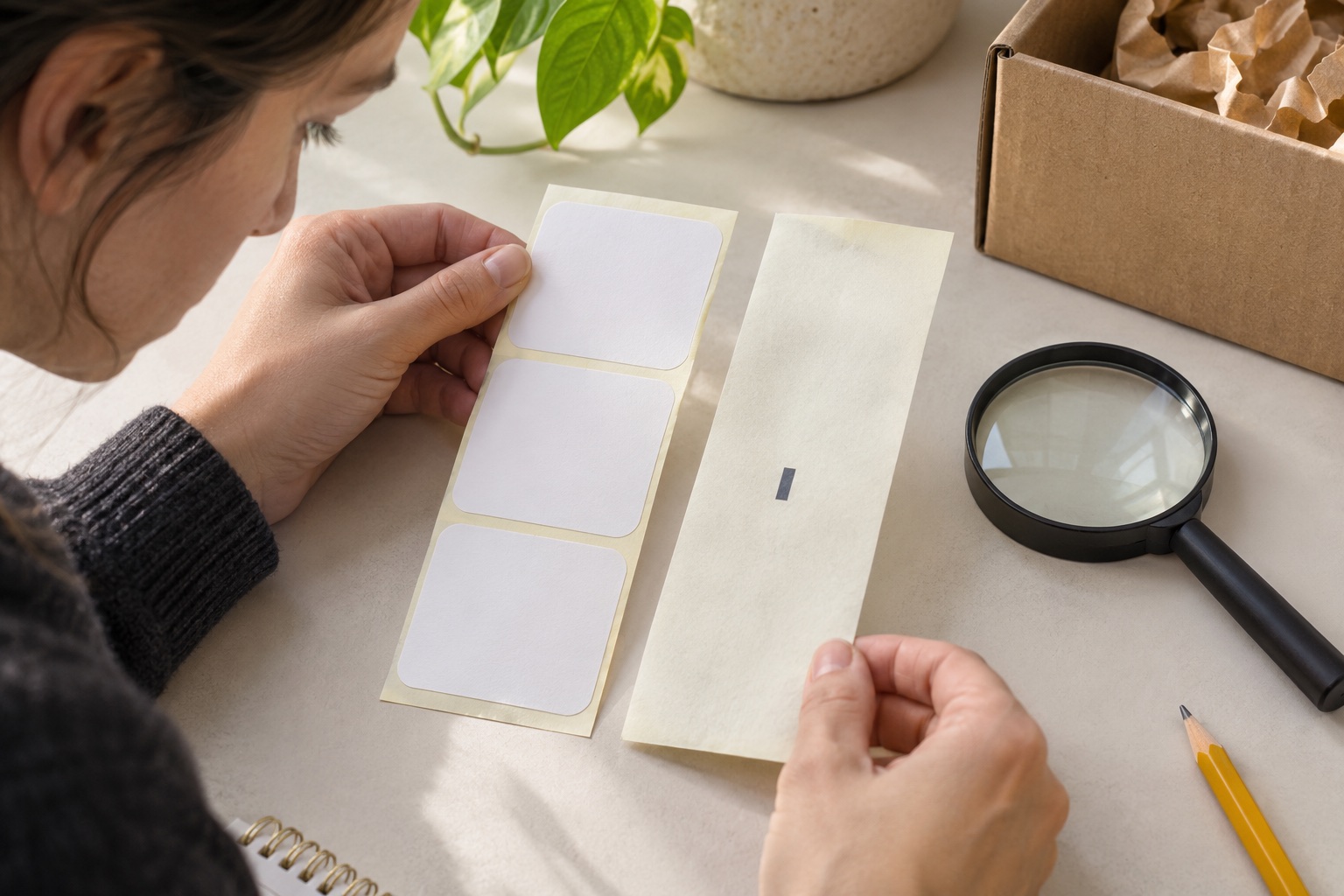
Look at the backing as well as the label face
A thermal printer needs to know where each label begins. Otherwise, a correctly sized image can land across two labels or advance by the wrong distance. The sensing feature is part of the supply, so two white label rolls that look similar from above can need different settings.
Gap labels have a separation between adjacent label faces, exposing the liner. Black-mark stock has a registration mark that the printer detects; it is commonly printed on the reverse of the backing. Continuous stock has no repeating label boundary for the printer to follow in the same way, so its configuration relies on the intended print length.
Turn over a short unused section and inspect it before changing settings. Look for regular gaps, notches, holes or printed marks. A perforation for tearing the liner is not automatically the feature that your printer uses to find the next label. Confirm the stock description and the printer’s instructions rather than choosing a mode by appearance alone.
| Media type | What identifies the next label? | What must match? |
|---|---|---|
| Gap / die-cut | A gap or another supported interruption between labels | Supported gap sensing, the actual dimensions and calibration |
| Black-mark | A printed registration mark on the media | Supported mark sensing, mark dimensions, side and position |
| Continuous | No repeated label-start feature | Supported continuous mode and the intended print length |
How gap and mark sensing differ
A transmissive sensor detects light passing through the media. The change between a label-plus-liner section and a gap can tell the printer where the label boundary is. A reflective sensor detects a change in light reflected from the media, such as a suitable black registration mark.
These are useful concepts, not universal instructions. Some printers combine sensing functions, some have movable sensors, and others have a fixed detection area. Zebra’s documentation illustrates why both the selected mode and the sensor position matter. Its instructions describe Zebra machines; they do not establish that a different brand has the same hardware or adjustment range.
For black-mark media, the mark must pass through the relevant sensor’s detection area. A mark on the wrong side or too far to one edge may be invisible to that machine. “Black-mark compatible” is therefore less useful than a specification giving the supported mark position and dimensions.
Ask for the information that width cannot tell you
Start with the full printer model and its supported media types. Then check label width and length, gap or mark specification, liner arrangement, coating and any thickness limits in the manual. For rolls, also check the core and maximum outside diameter against the printer or external holder.
For ordinary parcel work on a compatible open-format machine, a known supply and a saved setup are easier to manage than a new special material with no technical details. The MUNBYN 500-label fanfold pack below is a nominal 4×6-inch parcel supply. Before configuring it, check the actual stock and follow the printer’s media-learning instructions.
Do not read a long seller compatibility list as a guarantee for every model in a brand. Keep a record of the exact pack that works. If you change the stock, treat its dimensions and backing as a fresh setup check even when the front label still says “4×6”.
Open-format fanfold supply
MUNBYN 4 × 6 inch fanfold shipping labels
A 500-label fanfold pack for compatible direct thermal shipping printers. The folded stack sits behind the printer and feeds without putting a large roll inside the machine.
Keep in mind. Check the actual printer’s width, gap sensing and feed instructions. These open-format labels are a different system from Brother DK holders and DYMO’s Series 5 authenticated rolls.
- 4 × 6 inch format
- 500 fanfold labels
- Direct thermal media
What the MUNBYN RW403B guidance establishes
MUNBYN’s RW403B support guidance tells Windows users to select the corresponding paper size and paper type. It distinguishes gap, continuous and black-mark positioning in that explanation, and says the configured gap should match the label stock. The manufacturer also advises recalibration when media size or gap changes.
Those instructions support checking the selected mode before trying to solve feed problems with document margins. They do not provide a complete physical specification for arbitrary black-mark stock. We have not established a model-specific mark width, mark position or sensor adjustment range from the primary information used here.
If you intend to use unusual black-mark labels, ask MUNBYN to confirm the exact supply, with photographs of both sides and its technical drawing if available. Do not buy a bulk pack on the strength of a driver option alone. For standard parcel labels, begin with the documented loading and calibration procedure for the supplied media.
Sensing is only one part of compatibility
A printer can have a suitable way to locate a label and still reject or be unable to load a particular supply. The supply holder, supported media family and recognition requirements remain relevant. This is particularly important when replacing older equipment with a similar-looking current model.
DYMO’s LabelWriter Series 5, including the 550, requires Authentic DYMO LW labels. Generic rolls advertised for an older 450 should not be assumed to work in a 550. The recognition system remains a separate requirement from the visible gap or registration mark. Check that the exact current pack explicitly supports your printer.
Brother QL supplies have another boundary: use a DK roll code listed for the exact printer. DK-11201 is a nominal 29 × 90 mm address format for listed QL models. It provides a useful example of buying by a supported supply code rather than by a generic label width. It is not a four-inch parcel label or a substitute for open-format fanfold stock.
Small envelope address labels
Brother DK-11201 standard address labels
A genuine pre-sized Brother DK address roll for compact mailing and file labels. Use it when the address fits comfortably on the smaller label and a large parcel panel would be unnecessary.
Keep in mind. The nominal 29 × 90 mm format gives limited space for long addresses. Preview the complete address and use larger media when small type would make it hard to read.
- 29 × 90 mm nominal
- 400 pre-cut labels
- Brother DK holder
Our Brother DK compatibility table separates narrow address media from wide shipping rolls. Follow that model-specific list before treating a visible gap as proof that an unfamiliar roll can be loaded.
Diagnose a feed error before moving the artwork
If the printer skips labels, feeds blank labels or loses the start position, first stop the batch and verify the loaded stock. Check that the guides and supply position allow straight, unobstructed feeding. Then check the driver’s actual label dimensions and sensing mode against the stock.
Follow the exact printer’s calibration or label-learning procedure. If its manual requires a sensor position, set that position as directed. Follow the manufacturer’s cleaning instructions if the sensor area needs attention; do not improvise solvents or dismantle an unfamiliar mechanism.
A consistent small offset is a different clue from a start position that drifts across a batch. Once feeding is stable, inspect the document’s page size, orientation and margins. MUNBYN documents horizontal and vertical offset controls in its computer workflow, while noting that its mobile app does not offer the same offset adjustment at the time of this review.
Avoid changing several things together. Record the original settings, make one relevant adjustment and print a sample. That makes it possible to identify whether the issue came from media detection, mechanical drag or the document layout.
Confirm repeatable feeding before printing orders
Use a short sample batch to check that the image begins in the same place each time and stays within the label edges. Inspect any barcode for clipping or visible print defects. For postage, follow the carrier’s instructions for its particular label file and do not shrink the layout merely to hide a feed error.
Once the setup works, save the paper profile and record the supply code, dimensions, sensing type and relevant calibration instructions. This is especially useful on a shared packing desk, where the next user may otherwise choose a familiar-looking but incorrect paper setting.
Primary sources and limits
Reviewed in November 2026. General sensing explanations are distinguished from model-specific compatibility in the cited manufacturer documentation.
- Zebra explanation of media types and sensor selection
- Zebra guidance on model-specific media sensor positioning
- MUNBYN RW403B paper type, gap and offset guidance
- MUNBYN RW403B loading and recalibration guidance
- DYMO Series 5 Authentic LW label requirement
- Brother DK-11201 dimensions and model compatibility
Common questions
Are black-mark labels just labels printed in black?
No. Black-mark describes a registration mark used to locate the label, usually on the backing. It is separate from the address, barcode or artwork printed on the label face. A printer must support the relevant sensing arrangement and mark position.
Can I use a black-mark setting for ordinary gap labels?
Use the mode specified for the stock and printer. Gap and black-mark sensing locate labels differently. Choosing the wrong type can cause skipped labels or incorrect start positions; changing the document margin does not repair the sensing mismatch.
Does the MUNBYN RW403B support any black-mark roll?
That has not been established. Its support guidance discusses paper-type choices including black-mark positioning, but the sources used here do not provide a complete model-specific specification for mark dimensions or sensor position. Confirm the exact stock with MUNBYN before buying unusual black-mark media.
Does a gap sensor mean the printer accepts generic labels?
No. Width, label length, coating, thickness, holders and any manufacturer recognition system can also matter. DYMO Series 5 requires Authentic DYMO LW labels; Brother QL printers use listed DK media. The sensor type is only one compatibility check.
Should I change the gap setting when text prints too far down?
First establish whether labels advance consistently. If start positions drift or labels are skipped, check media type, size, gap and calibration. If every label is displaced by the same small amount, inspect document layout and the model’s offset controls after confirming the feed setup.