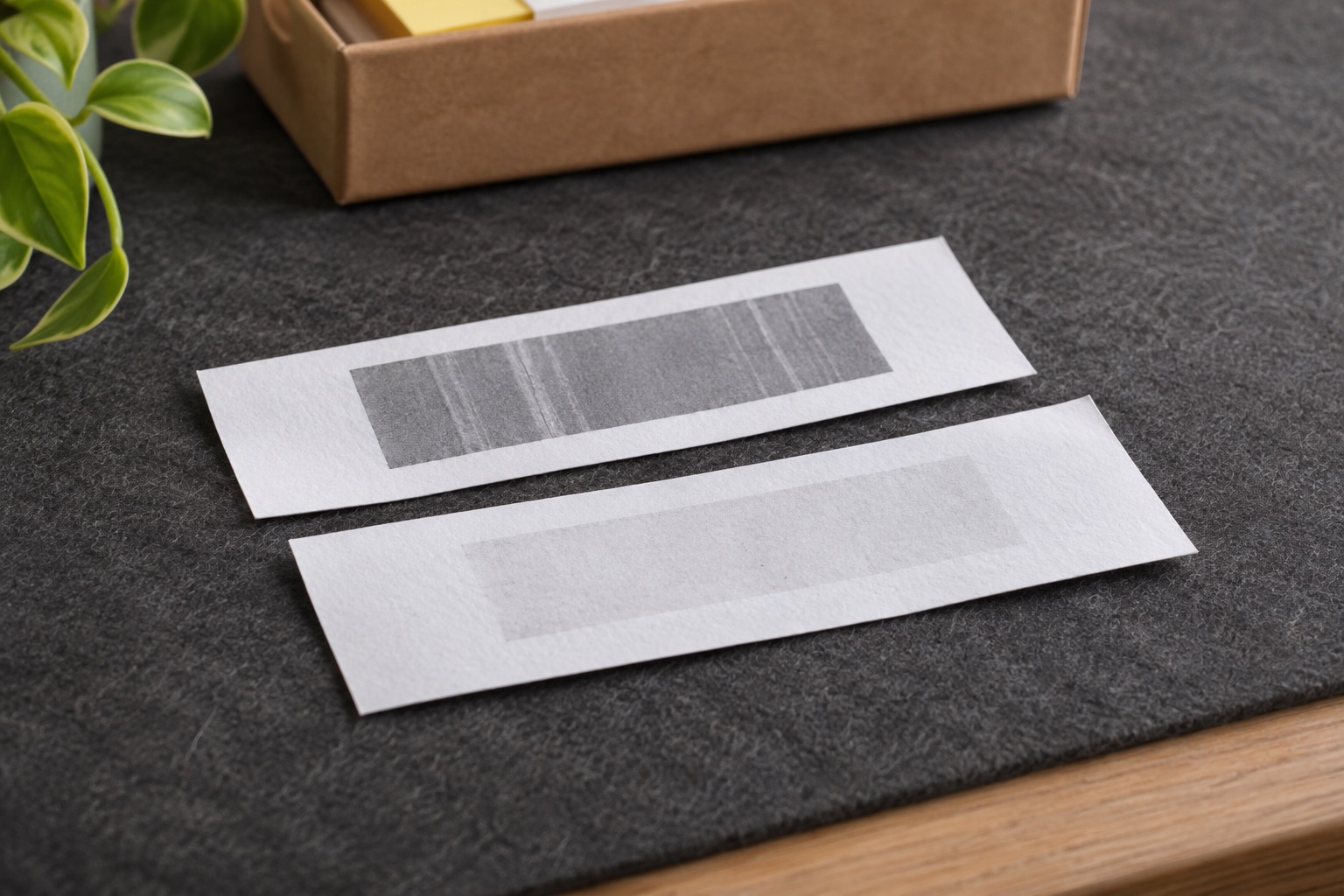
Look at where the print fades or breaks
Put one faulty label beside the original PDF. Is the entire print pale, is a white line missing in a fixed position, or does only the barcode look blurred? The pattern helps you decide where to start. Keep the sample while you try each change so you have a direct comparison.
| Print pattern | First check | What to try next |
|---|---|---|
| Pale across the whole label | Printer test and previously working stock | Try a small density or speed adjustment if supported |
| White streak at the same position across jobs | Printer’s own test | Follow the exact model’s printhead and paper path guidance |
| Smudged or joined barcode bars | Original PDF and print scale | Check the preview and back off excessive density |
| Fault appears only in one download | File and selected page size | Print an original PDF at the carrier’s required settings |
| Text or barcode is cut at the same edge | Paper size, orientation and margins | Correct the layout and check one fresh print |
A repeatable line on the printer’s own test points you towards the stock or print path. A defect confined to one file points you back to its source or print options. A printhead diagnosis needs more evidence than one bad postage label.
Isolate the file before changing the printer
Open the carrier’s original PDF. Check the barcode looks complete and the selected print size matches your stock. A screenshot or low-resolution image can lose detail, especially when resized. MUNBYN recommends the PDF route when barcodes look light or unclear. Use the carrier’s sizing instructions and inspect the preview before the next print.
Next, use your model’s built-in test or configuration label, where available. Print it on the same stock to see whether the fault repeats without the original file. If the test is clear but the postage PDF is poor, compare the selected printer, paper size, scaling and print options before altering a working setup.
If the built-in print is pale or has the same streak, try a few labels from a pack that printed well before. Change only the stock during this comparison. If it works, review the suspect pack’s material and suitability. For a thermal transfer model, check the specified ribbon and label combination as well.
Adjust print density or speed one step at a time
Record the current values before making a change. If your model has density or darkness controls and the print is uniformly light on supported stock, try one small increase, then print one sample. If the printer supports speed adjustment, a slower setting is another comparison for faint print. Hold the stock and file constant so you can see which change helped.
MUNBYN documents the RW403B settings in its print app preview and computer print preferences. On Windows it shows Printers & scanners → Munbyn RW403B → Printing preferences → Page Setup, with density and speed controls there. On Mac its guidance points to Printer Features. Use the options offered by your driver or app.
Compare the white gaps between barcode bars as well as the dark bars. If the bars start merging, lower excessive density and check the result again. Save the setting that works for the particular stock. A new material or ribbon may need a fresh sample.
Use the manufacturer’s cleaning method for your model
Before working inside the printer, follow its power and cool-down instructions. Identify the printhead, roller and outlet using the manufacturer’s diagram. Each part can have a different approved cleaning method. Keep the service instruction to hand if you are unsure which part a mark is on.
- MUNBYN RW403B. MUNBYN describes switching it off and allowing it to cool, wiping the indicated printhead area and letting it dry before turning it back on. Follow the model’s wipe and drying instructions.
- Zebra ZD421 and ZD621 direct thermal models. Zebra specifies a new cleaning pen for the printhead. Use the guide for the exact variant, since the direct thermal and thermal transfer versions have separate procedures.
- Brother QL-1100 and QL-1100c. Brother describes normal DK roll feeding as part of printhead cleaning, with a cotton swab if that is insufficient. It gives separate instructions for the roller, label outlet and exterior. Check the relevant section before cleaning that part.
After cleaning, load compatible stock and print the same sample. If a fixed streak persists on the printer’s built-in test after the documented maintenance, save a copy for manufacturer support. A photo showing the streak on several sample prints can be easier to diagnose than a description of a single label.
Inspect the label before sending the parcel
Compare the replacement with the original carrier PDF. Check the complete address, tracking text, all bars and the clear space around the barcode. Verify that nothing has clipped or merged. Keep the label flat on the parcel and follow the carrier’s placement instructions.
For a batch, inspect the first label and another after several jobs. If the print changes as the roll or stack moves, check whether the stock is feeding straight and freely. If the defect stays in the same place on every sample, report that detail and the stock code when you contact support.
Manufacturer print quality and maintenance guidance
Checked in November 2026.
Common questions
Why is my shipping label pale across the whole print?
Compare the original PDF with a printer test. If both prints are pale, check the stock and the model’s density and speed controls. If the printer test is clear, look at the file, its scaling and the application’s print settings.
What causes a white line in the same place on every label?
A line at the same position across different jobs can point to dirt or another print path problem. Follow the exact printer’s cleaning instructions. If it still appears in a built-in test on compatible stock, show the sample to the manufacturer.
Will turning up the density fix a barcode that does not scan?
It may help if the entire print is too light. Extra density can also make dark bars run together. Check the original file and scale, adjust one setting at a time and compare the resulting sample before using it.
Can I use an alcohol wipe to clean any thermal printer?
Check the model and the part you are cleaning. MUNBYN describes wipes for the RW403B printhead, Zebra specifies a cleaning pen for the direct thermal ZD421 and ZD621, and Brother gives separate QL-1100c instructions for the head, roller, outlet and case.
Can I print a fresh copy of a faint parcel label?
Reprint the original label for the same parcel if the postage is still valid and your carrier allows it. Compare the new copy with the original PDF and check the address, tracking reference, full barcode and clear space before applying it.