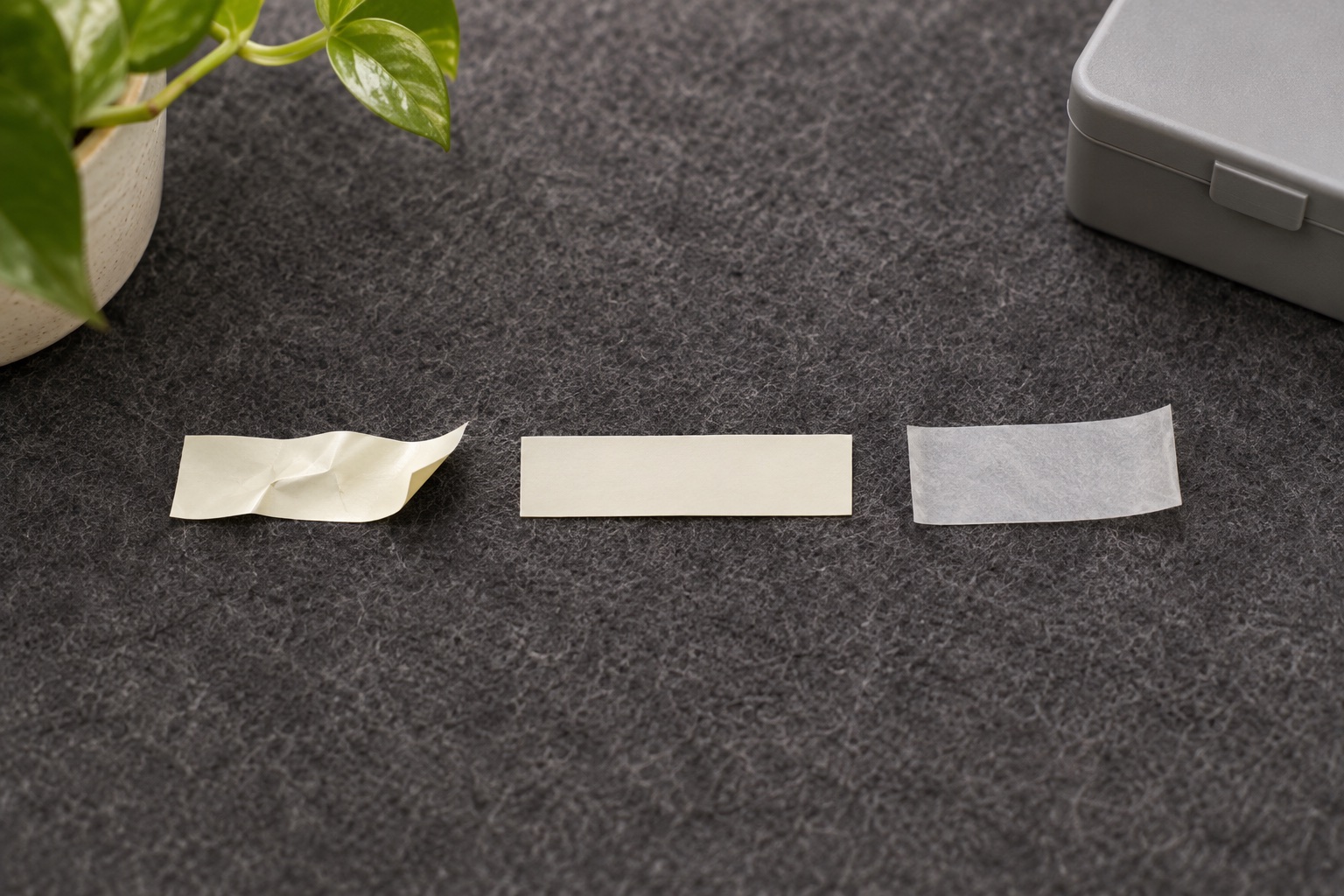
Check whether the printer fed any tape
A crumpled strip, a motor that starts and stalls or a Tape Jam message on the LT-100H points towards the tape path. If the printer fed a flat, readable strip and only the cut failed, inspect the cutter using the instructions below. On a 200B that stays silent, first establish whether the phone sent the job.
| What happens | What to check first |
|---|---|
| LT-100H shows Tape Jam | Inspect the cassette and exit path with the unit off. Check the cutter if a piece is trapped near it. |
| 200B gives a label maker or printing error | Check whether its LT cassette is empty, mis-seated or jammed. Check that the batteries sit correctly. |
| 200B does not respond to a print tap | Wake it, bring the phone close and check Bluetooth and LetraTag Connect access. Listen for the motor on a single retry. |
| A complete label feeds but will not cut | Open the exact model’s cutter care instructions. |
| Tape feeds smoothly but comes out faint | Check cassette seating and batteries. Use the model’s print quality guidance if needed. |
Remove loose tape and reseat the cassette
- Stop sending print jobs and switch the label maker off. On the LT-100H, press and release the cassette cover. On the 200B, lift the cover.
- If the cassette lifts freely, remove it and check for a folded end, an empty cassette or a loose scrap. Remove loose tape you can reach safely from the open compartment. Leave the blade alone and keep tools out of the exit slot.
- Check the cassette says DYMO LetraTag LT and 12 mm. Replace a damaged or empty cassette. If you have another known good LetraTag cassette, use it to separate a cassette fault from a problem in the machine.
- Line up the tape end with the path shown in your model’s loading diagram. On the LT-100H, DYMO shows the tape between the printhead and pinch roller. Press until the cassette clicks into place and close the cover.
- Check the cover sits flush. If it will not close normally or the cassette remains trapped, stop and inspect the cutter instructions for your model. LT-100H UK user guide · LetraTag 200B user guide
Use the right instructions for a stuck cutter
Both manuals show a separate cutter care procedure in the Caring for Your Label Maker section. Use the drawing for your machine to identify the black post and cutter control. The manuals call for removing the cassette first and using a cotton ball with alcohol for the blade. Follow the illustrated sequence and keep hands clear of the sharp edge. The 200B instructions include pressing and releasing the cutter button once after cleaning to return the blade to its home position.
If you cannot remove the cassette or reach the part safely with the illustrated procedure, contact DYMO. The same applies if the blade stays lodged after the documented steps. LT-100H cutter care · 200B cutter care
Test one short label before resuming the job
Switch the machine on and print a word such as TEST. Use the Print key on the LT-100H or the print control in LetraTag Connect on the 200B. Watch whether the tape feeds straight and wait for it to stop before pressing the cutter. If the 200B is silent, confirm it is awake and within range with Bluetooth enabled. DYMO describes the 200B as connecting directly in the app without a manual pairing step. The manual also calls for Location Services during mobile setup. DYMO 200B product specification
If the motor tries to feed and stalls again, check the power source. Both model guides specify four AA alkaline batteries. Fit a fresh matching set if power is uncertain, following the polarity markings. If the problem follows one cassette, replace it. If it repeats with a sound cassette and fresh batteries after the cutter check, tell DYMO which model you have, what the screen or app said, and whether the motor started. Those details help distinguish a feed problem from a cut or connection fault. DYMO LT-100H troubleshooting · DYMO 200B troubleshooting
DYMO instructions
Common questions
What does Tape Jam mean on the LetraTag LT-100H?
DYMO’s manual describes a stalled motor. Check for trapped tape, reseat or replace the cassette and follow the cutter instructions if the blade is lodged forward.
Why does my LetraTag 200B show a printing error with no tape coming out?
A generic error can mean the cassette is empty, jammed or incorrectly seated. Check the batteries too. If the app cannot connect to the 200B, check power, Bluetooth and the app’s permissions before treating the fault as a jam.
Can I pull the tape out through the exit slot?
Clear loose material from the cassette compartment with the unit off. If tape or the cassette is trapped near the blade, follow the model’s cutter instructions or contact DYMO rather than pulling through the slot.
Does 12 mm DYMO D1 tape fit a LetraTag?
Both the LT-100H and 200B take 12 mm DYMO LetraTag LT cassettes. D1 is a separate cassette family even when its marked width is the same.
Should I reset my 200B with a LetraTag keyboard shortcut?
The 200B prints from the LetraTag Connect app and has no LT-100H keyboard. Use the checks in the 200B manual for cassette seating, power and cutter care.