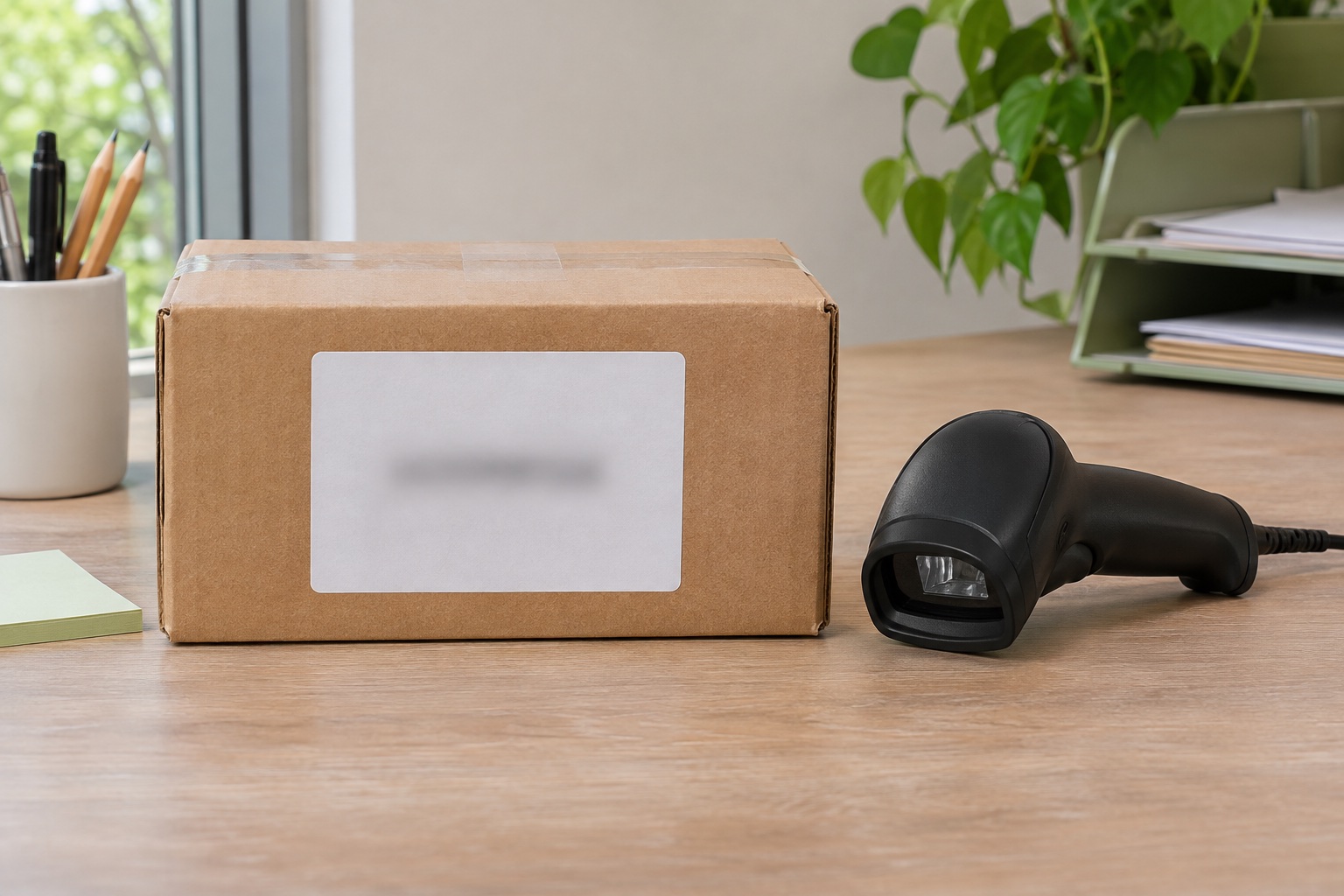
Check whether you need the postage barcode or a shop-print code
Open the order or booking and confirm the carrier and drop-off method. A print-in-shop code may be used at a participating printer to produce the label. The printed shipment barcode on the parcel is for the carrier's tracking and handling. Some locker flows use their own code or number, so follow the booking rather than choosing a scanner based on the shape of the symbol.
| Where it fails | What to check first | Next step |
|---|---|---|
| Shop printer rejects a QR code on your phone | Right carrier, service, code and shop | Check the original message for a supported numeric fallback or ask staff |
| Printed bars are clipped or very small | PDF page, stock size, scale and printable area | Reprint the complete original carrier file at its intended size |
| Bars look grey, streaked or blurred | Print quality and media | Print a separate test and correct the fault before reprinting |
| Code scanned before sticking the label down | Glare, creases, bends or tape | Replace the print on a flat, clear part of the parcel |
| Clear, complete label is rejected at handover | Booking and correct service location | Ask the carrier or selling platform to check the shipment status |
Evri's eligible Print In ParcelShop flow has a numeric fallback if its QR code will not scan. Use the code from the booking instructions for that service. Evri ParcelShop printing
Inspect the printed symbol and the blank space around it
Compare the label with the original PDF. Look for pale bars, blotchy dark areas, white stripes crossing the code and missing corners or edges. If it was printed from a screenshot or re-saved as an image, go back to the original download. If the original file already contains a clipped or broken symbol, request fresh paperwork through the issuer rather than redrawing it.
Leave the quiet zone, the clear space the scanner needs around the symbol. Cropping the white margin, trimming near the bars or writing in that space can interfere even if all the black lines remain visible. Preserve the carrier layout. A code that reads on your own phone can still fail under different lighting or on the carrier's equipment. GS1 UK on quiet zones, GS1 UK on barcode contrast
Keep the label flat, clear and easy to find
Use the flat area specified by the carrier. Avoid bridging a seam, corner, rib or fold. Smooth out creases and keep other stickers away from the symbol. Remove or completely cover old shipping barcodes on reused packaging. If a paper label needs tape, follow your carrier's method. Evri says to tape the edges and keep the label unobscured. Evri label placement
If there is no suitable flat space, change the packaging or check the carrier's instructions for the item shape. A smaller print can remove space the barcode needs, so correct the layout or use packaging that fits it.
Reprint the right label and check the booking if it still fails
Use the original booking to obtain the label again. Confirm the service and parcel before covering or removing the failed print. If a clear reprint still fails at handover, show the carrier or shop the booking reference and check whether that location accepts the service. Use a supported alternative from the issuer where available. Keep proof of acceptance when the parcel is taken.
A label can be physically readable while the booking is wrong for the device or parcel. Conversely, a valid booking can have a damaged label. Comparing the original file, printed copy and booking keeps those checks separate.
Common questions
Can my phone tell me whether a parcel barcode will scan?
A phone can help spot a damaged symbol if it supports that barcode type. It cannot establish that the carrier will accept the label or booking. Some carrier symbols may not decode in an ordinary camera app.
Why won’t the ParcelShop scan the QR code on my phone?
Check the booking message for the eligible print-in-shop code and use the correct location or device. Evri provides a numeric fallback for its eligible print-in-shop QR workflow. Follow the instructions for your own service.
Should I put clear tape over the parcel barcode?
Follow the carrier's instructions. For an Evri paper label, tape the edges and leave the print clear. Tape across a symbol can reflect light or wrinkle over the bars.
Can I use the same barcode on two parcels?
Use each valid shipping label only for the parcel it was issued for. If you have a multi-parcel booking, check the label for each piece in your booking rather than printing duplicates.
Can I reprint a label if the barcode is smudged?
Use the original download or the carrier's reprint option for the same valid shipment. Replace the damaged copy and make sure only the intended current shipping label is visible.