Check what your InPost booking gives you
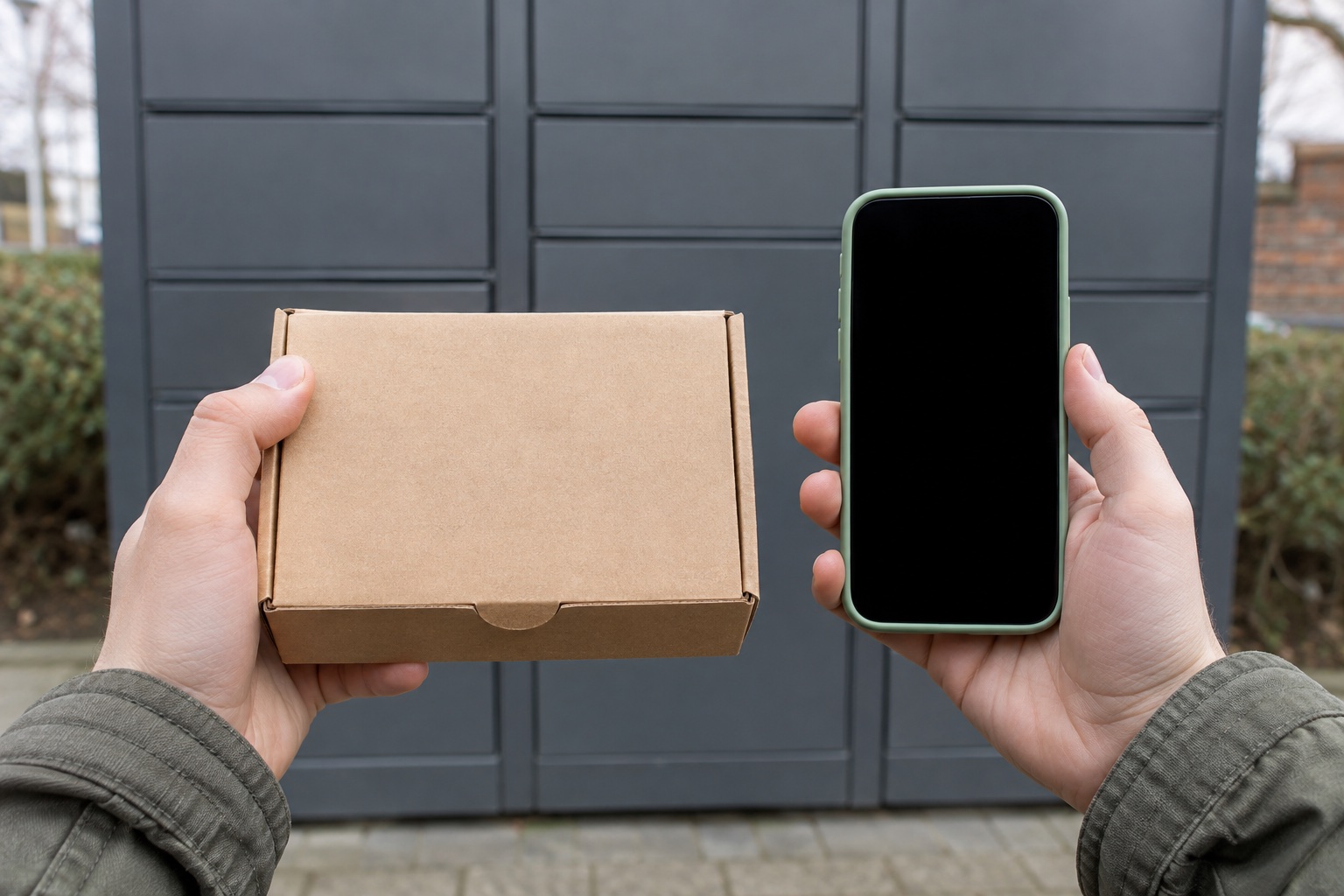
InPost calls the QR code it sells through its UK app or website a digital label. Open that code on your phone at drop-off. A printable label is a file with a parcel barcode and label information. The barcode belongs on the parcel before you hand it over. The same carrier can handle both kinds of booking.
| What you received | What to take to drop-off |
|---|---|
| Digital label from the InPost app or website | A sealed parcel and the booking's QR code on your phone. |
| Retailer return with an InPost QR code | The sealed return parcel and the code from the return confirmation. |
| Marketplace order with an InPost QR code | The parcel for that order and its specific drop-off code. |
| Marketplace or booking with a printable InPost barcode label | The parcel with its printed label securely attached. |
| Yodel by InPost return instructions | Follow the retailer's route. For a supported print-free Yodel Store return, show the barcode supplied for that service. |
For a sale, start in the marketplace order. For a return, start in the retailer's returns flow. If you are paying to send directly with InPost, weigh and measure the fully packed parcel before selecting its compartment size in the app or website. InPost distinguishes its own print-free returns from the Yodel by InPost store option. InPost sending instructions · InPost label types
Print the barcode label before you leave
Open the original label from the issuer and check its page size before printing. Match the file to the size and stock your printer uses. If you have an A4 file and a sheet printer, preview at the intended size, print one copy and trim the spare paper if needed. Check the complete barcode and address area remain visible. If you have several parcels, compare the tracking reference on the label with the order before attaching it.
Remove old labels from reused packaging and attach the new one to a broad, flat face. Keep the barcode clear of edges, folds and seams. The InPost shop can scan a parcel with a printed barcode, and the locker can scan it before opening a compartment. If you only have the PDF on your phone, arrange printing before drop-off. InPost sending with a barcode · InPost Shop drop-off
Scan at the locker or show the code at a shop
- Use InPost's location finder to choose a locker or shop for drop-off. The app shows available locker compartment sizes. Save the booking code where you can open it quickly.
- At the locker, follow the sending or drop-off prompts and scan your QR code or the barcode on the parcel. Use the compartment size the booking allows.
- Put one parcel into the compartment opened for that scan. Close the door fully and complete the on-screen prompts before starting another drop-off.
- At a staffed InPost Shop, show the QR code or the printed parcel barcode for staff to scan. With a QR booking, InPost applies a label after collection. InPost sending instructions · InPost print-free process
A drop-off code is for sending. If you are collecting, use the location and collection details in your InPost message. InPost scanner help
Fix a code that will not scan or a compartment that will not fit
First check that the code belongs to the parcel and the service shown on your booking. For a phone QR code, InPost recommends increasing the screen brightness, holding it roughly 15 cm from the scanner and changing the angle slightly. If it still fails, use the sending tracking number with the locker keypad. If a printed barcode is clipped, creased or faint, check the original file and print a clear replacement.
If the compartment is too small, close it empty and use the size prompt where offered. A direct booking bought for the wrong size may need to be cancelled and rebooked for the correct size. If the issue is availability at that locker, check another eligible locker or shop. InPost scanner help · InPost compartment guidance
Keep the drop-off confirmation for each parcel
Check for the confirmation after you close the locker. InPost emails a digital receipt when it has your address. If it asks for an address on the screen, use the receipt option there. If you missed it, use InPost's receipt request. Save the receipt with the matching order and tracking number if you are sending several parcels. If a scan stopped partway through or the door status is unclear, contact InPost with the tracking number and locker location before trying that booking again. InPost digital receipt help
InPost instructions
Common questions
Can I send an InPost parcel without a printer?
Yes, when the booking gives you an InPost drop-off QR code. Scan it at an eligible locker or show it at the shop. If your order supplies a printable barcode label, attach the printed label before drop-off.
Can an InPost Locker print my label?
InPost lockers have no printers. Print a required barcode label before you go. A print-free booking uses a QR code and InPost labels the parcel after collection.
What if my InPost QR code will not scan?
Turn up the phone brightness and hold the screen about 15 cm from the scanner. If it still fails, InPost says you can enter the sending tracking number manually at the locker keypad.
Can I put two InPost parcels in the same compartment?
InPost requires one parcel per compartment. Match each parcel to its own code or label and complete its drop-off before starting the next.
Can I change my Vinted printable InPost label to a QR code?
InPost directs sellers to Vinted for label changes. A change may involve cancelling the order and having the buyer choose another delivery option. Check the order and contact Vinted before you cancel or buy postage separately.