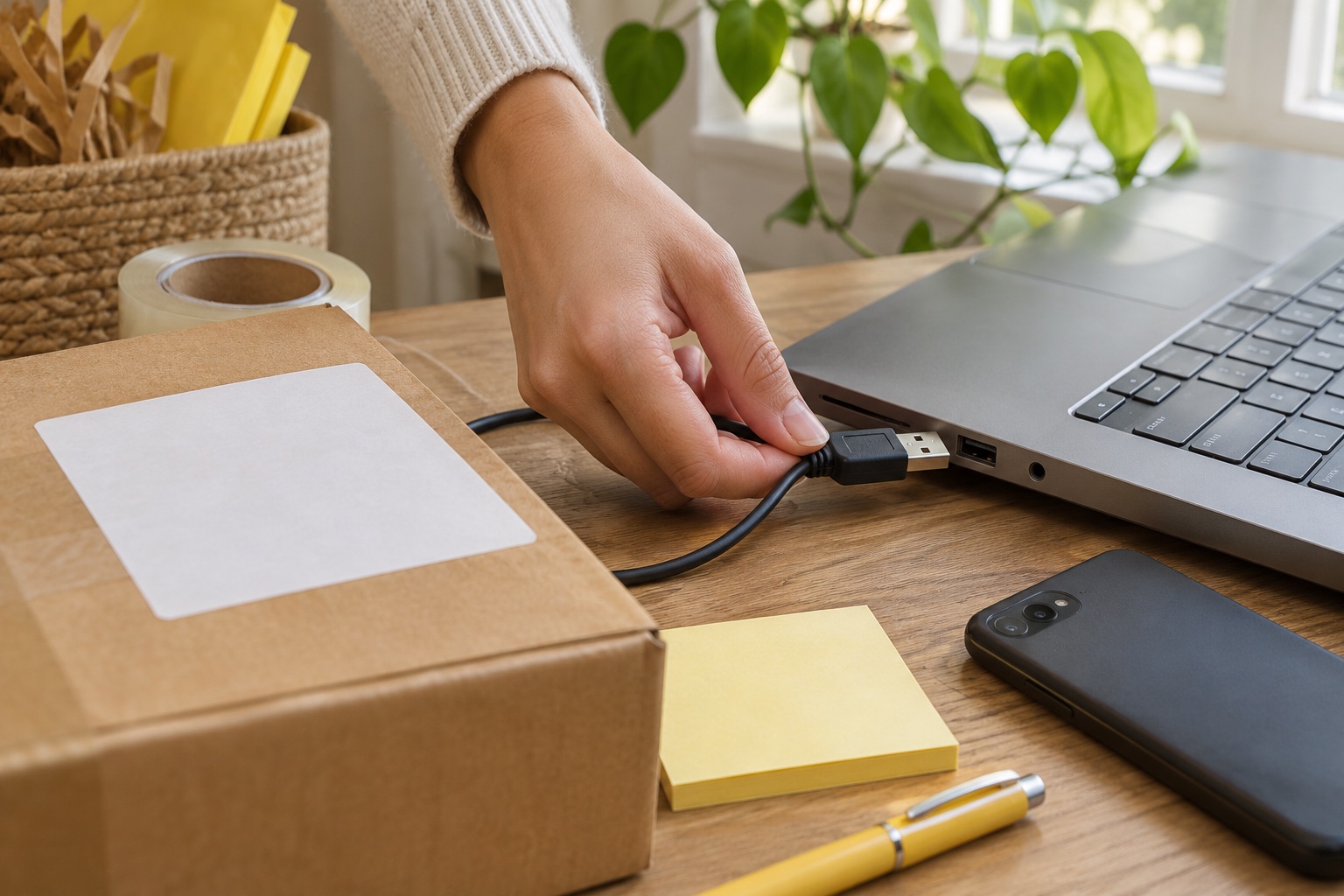
Start with the device and file you already use
Write down the steps for a normal order. You might buy postage in a browser on a Windows laptop, download a PDF and print it beside the parcel. Or you may prepare everything on a phone, then need an app to send that PDF to the label printer. These are different workflows even when both printers are described as wireless.
Check the file as well as the device. A printer app may create its own labels but still need a separate import step for a postage PDF. A combined A4 document may need a different carrier template before it is ready for a four-inch printer. Our 4×6 versus A4 guide covers that format decision.
| Route | Useful when | Check first |
|---|---|---|
| USB | A supported computer stays beside the printer | Exact driver, computer port, cable and label size |
| Wi-Fi | Supported devices need network access without an Ethernet cable to the printer | Exact Wi-Fi support, network setup and application |
| Ethernet | The printer stays at a network-connected packing position | Network port, cable and setup on every computer |
| Bluetooth | A documented app or browser route fits the device and file | Supported app, pairing method, PDF import and print settings |
| AirPrint | A supported Apple printing route is part of the plan | Exact printer support, app and available page settings |
USB suits one computer at a fixed packing desk
A USB setup gives you a direct physical connection between the computer and printer. For one person working at the same desk each day, that can be a practical way to send labels without also managing a network connection. Check the manufacturer's current driver and software for your exact operating system and processor.
The Brother QL-1100c illustrates this approach for wide labels. It connects over USB, uses compatible DK rolls and has an automatic cutter. Make sure the packing layout leaves room for the cable, the open roll cover and the labels leaving the machine.
A USB-C laptop may need a suitable cable or adapter depending on the printer bundle. Confirm the actual box contents. A connector that physically fits is only one part of the setup, since the current software must support the computer too. Brother QL-1100c
A fixed USB packing station
Brother QL-1100c shipping label printer
A wide-format choice for a seller who buys postage on a supported computer and prints at the same packing desk. The automatic cutter and Brother DK media make it convenient to alternate between supported die-cut and continuous labels.
Keep in mind. It is a USB model. Choose the network-equipped QL-1110NWBc if sharing the printer or using supported wireless printing is essential. Both depend on the Brother DK media system.
- 101.6 mm maximum print width
- USB computer connection
- Automatic cutter / Brother DK
Bluetooth needs a documented printing application
For Bluetooth, begin with the maker's instructions for the specific model. Some workflows pair inside a mobile app. Others use a desktop browser with its own Bluetooth-printing feature. A successful pairing in general device settings does not establish that an unrelated selling app can print to the machine.
For the MUNBYN RW403B, the manufacturer provides separate phone-app, desktop USB and browser-editor instructions. Follow the route for your actual device. If you want to print a postage PDF, confirm how to import that PDF and select its label size before buying the printer.
Allow for the small recurring steps. You may need to save the file from a selling app, open it in the printer app, choose the label entry and check the preview. That can work well at modest dispatch volumes, while a desk with a repeated computer workflow may be simpler over USB. MUNBYN phone connection instructions, MUNBYN browser printing instructions
Open-format labels with app printing
MUNBYN RealWriter RW403B label printer, white
A practical starting point for a dedicated parcel-label position using compatible open-format direct thermal stock. Choose USB for the supported desktop route or follow MUNBYN’s current phone-app instructions for Bluetooth printing.
Keep in mind. Bluetooth needs the supported application and file workflow. It does not establish Wi-Fi or AirPrint support. Leave room for the fanfold stack or an appropriate external roll holder.
- 4 × 6 inch label workflows
- USB / Bluetooth app printing
- Open-format direct thermal media
Wi-Fi and Ethernet are useful sharing choices
A network-capable printer can serve a supported workflow from more than one device. Ethernet uses a network cable to the printer. Wi-Fi connects the printer to a compatible wireless network. In either case, the computers or apps that send jobs still need the correct setup.
The Brother QL-1110NWBc is the wide-format member to examine when these extra routes matter for parcel labels. Its documented connections include USB, Ethernet, Wi-Fi and Bluetooth, with AirPrint support. Compare it with the USB QL-1100c if you need the same width class at a shared packing desk. Brother QL-1110NWBc
For narrower envelope addresses and filing labels, the Brother QL-820NWBc offers similar connection choices in a smaller width class. It accepts media up to 62 mm wide. That distinction matters when a listing mixes the phrases address labels and shipping labels: the available connection does not tell you whether the full parcel panel fits.
Shared address and filing labels
Brother QL-820NWBc network address label printer
A network-capable alternative when more than one person needs narrow address or filing labels. Brother documents USB, Ethernet, Wi-Fi, Bluetooth and AirPrint support, giving you several ways to build a supported workflow.
Keep in mind. It remains a 62 mm-media printer, so network features do not make it a four-inch shipping printer. Check current drivers, your exact device and the supplied UK power accessories before buying.
- 62 mm maximum media width
- USB / Ethernet / Wi-Fi / Bluetooth
- AirPrint support / automatic cutter
A wired network is also an option for smaller labels without buying a Wi-Fi model. DYMO's LabelWriter 550 Turbo has USB and Ethernet, with DYMO Connect required on the computers that use it. Check the authentic-media requirement and manual tear-off arrangement alongside the network feature. DYMO LabelWriter user guide
USB or wired-network address labels
DYMO LabelWriter 550 Turbo, UK 3-pin
A compact address and identification label printer for a supported computer or wired network. Automatic label recognition identifies compatible authentic DYMO media, helping a shared setup keep track of the loaded roll.
Keep in mind. Its 56 mm maximum print width is too narrow for a full four-inch parcel label. It requires authentic DYMO LW media, uses manual tear-off and provides Ethernet rather than Wi-Fi.
- 56 mm maximum print width
- USB / Ethernet
- Authentic DYMO LW media
Check AirPrint as a separate feature
If direct printing from an Apple device is important, look for explicit support for the exact printer. Brother documents AirPrint for the QL-1110NWBc and QL-820NWBc. Their different media widths still apply, so choose the one that fits the label as well as the device.
Check the app you will use to open the file and the printing options it exposes. You need a route that keeps the complete label at the intended size, including the barcode and any service information. For a new setup, try a representative file before relying on it for a packing batch. Brother QL-820NWBc
Use a short compatibility checklist
Before ordering, record the printer model, your device and operating system, the exact connection route and the file you need to print. Then confirm the media family and size. If several people will use the printer, check that each device has a supported route and that the users can identify the loaded roll.
Read model-specific download notes. Brother's current QL c-model support information includes restrictions that differ from the original machines and flags the lack of Windows ARM drivers. Older family brochures can remain online after support has changed, so use the current download selector for the actual computer. Brother QL-1110NWB/c downloads
For a simple desk, begin with the smallest number of steps that covers your job. Add network or mobile features when they solve a real access problem, then test the complete file-to-label process with the correct stock.
Common questions
Is Wi-Fi better than USB for shipping labels?
Choose by the job. USB can be convenient for a supported computer at a fixed packing desk. Wi-Fi is useful when you need supported devices to reach the printer over the network without a cable between each device and the printer.
Will Bluetooth print a label from every selling app?
Not automatically. Check the printer maker’s supported app or browser workflow, whether it imports the file your selling service produces and whether it preserves the required print size.
Does a LAN connection mean wireless printing?
LAN can refer to a wired Ethernet connection. For example, the DYMO LabelWriter 550 Turbo provides USB and Ethernet. Check the exact hardware specification for Wi-Fi rather than relying on a broad network label.
Can I make a narrow wireless address printer handle 4×6 labels?
Wireless features do not change the media or printable width. A printer with a 62 mm maximum media width cannot handle the full width of a four-inch parcel label. Check size and connection separately.
What should I check for a Windows-on-ARM laptop?
Look for explicit support for the exact model and processor architecture on the current manufacturer download page. Brother’s QL c-model family download notes flag the lack of Windows ARM drivers. A general Windows compatibility statement is not enough.