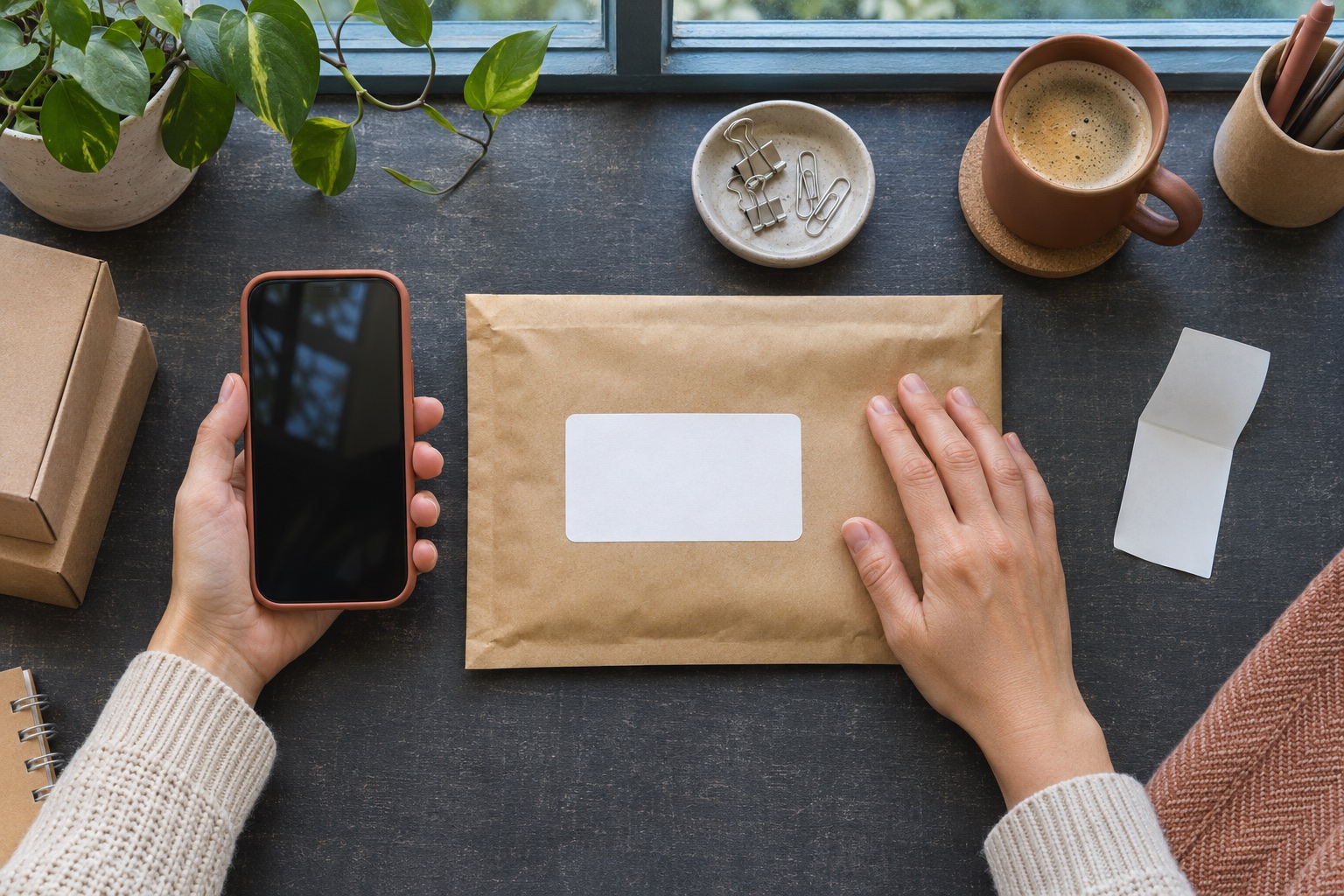
Download the postage file to your phone
Open your order in the marketplace or carrier app and download its printable label. If a link opens the PDF in Chrome, use the PDF’s download control. Find it in Chrome’s Downloads or in the phone’s file browser, which may be called Files or My Files. When a vendor printer app asks you to choose a file later, look in the same location.
Before sending the label anywhere, open it once and identify its layout. A dedicated thermal PDF usually has a postage label that occupies most of the page. An A4 file may contain a postage panel, receipt or instructions on one sheet. If the platform offers separate A4 and thermal outputs, choose for the paper you intend to load.
If the order only provides a drop-off code, read the instructions beside it. A code intended for a ParcelShop scanner is used at drop-off to obtain a label when that service offers shop printing. Use the printable file for a home printing workflow.
Print through Android’s system print service
This route works when your exact printer is supported by an Android print service and the app opening the PDF offers a print action.
- Search Settings for Printing. On supported Pixel phones, Google puts it under Connected devices → Connection preferences → Printing.
- Turn on the appropriate print service. If the manufacturer documents a separate service for the model, use Add service and select the one it specifies.
- For a local Wi-Fi printer, check that the printer and phone can reach each other on your network. Open the PDF and look for Print in the file viewer’s menu. In Chrome, the print action can be reached from More → Share.
- Select your physical printer. Expand the options where available and confirm the paper size, orientation and page range. Review one copy in the preview before printing.
If the list shows Save as PDF, that option creates a file instead of sending a job to paper. Check whether the correct print service is enabled and sees your printer. For a dedicated parcel printer, confirm that the service also offers a suitable size. A network connection alone does not specify what sizes a printer supports.
Connect and import the PDF inside the Bluetooth app
For a MUNBYN RW403B, install Munbyn Print from Google Play, switch on Bluetooth and power on the printer. Open the app and select the four-inch printer category, then select RW403B. Allow the app to find nearby devices if Android asks. On supported phones you can also review the permission under the app’s settings.
Tap File & Import, choose File, and select the carrier PDF you downloaded. If the shortcut is missing, MUNBYN’s instructions show how to add it via More Shortcuts. Check the page and choose the physical paper size before printing. If the app cannot access a file that opens in your carrier app, use the carrier’s download action to save a local copy in a folder that appears in the picker.
The RW403B’s documented mobile route stays inside Munbyn Print. Its Bluetooth connection and file picker let you print without relying on whether Android’s system print menu lists the printer.
Open-format labels with app printing
MUNBYN RealWriter RW403B label printer, white
A practical starting point for a dedicated parcel-label position using compatible open-format direct thermal stock. Choose USB for the supported desktop route or follow MUNBYN’s current phone-app instructions for Bluetooth printing.
Keep in mind. Bluetooth needs the supported application and file workflow. It does not establish Wi-Fi or AirPrint support. Leave room for the fanfold stack or an appropriate external roll holder.
- 4 × 6 inch label workflows
- USB / Bluetooth app printing
- Open-format direct thermal media
Use the symptom to decide what to change
| Symptom | Check first | What to try next |
|---|---|---|
| The print list only offers Save as PDF | Whether the printer supports the enabled Android service | Turn on the documented service and check network access |
| Munbyn Print cannot find the RW403B | Printer power, Bluetooth and app permission | Search again inside the four-inch printer category |
| The file picker cannot find the label | Whether the carrier PDF was downloaded | Save a copy to Downloads and reopen the app’s picker |
| The postage panel looks tiny | Whether the PDF page is A4 | Download the service’s thermal output if available |
| The preview looks right but the feed drifts | Stock size, type and gap | Follow the exact printer’s media setup procedure |
Wrong size or missing margins. Start with the page in the original download, then check the loaded stock. Exact 4×6 inches is 101.6 × 152.4 mm. Choose 100 × 150 mm when it matches your stock and output. App previews show how the selected page will sit on the paper, so check both edges of the address and the barcode before confirming. If a carrier offers only A4 for the job, its A4 workflow is a reliable fit for that page.
Print action missing. The app that opens the file decides whether it exposes Android’s print menu. Open the downloaded PDF in a compatible viewer for the print service route. For the RW403B, use Munbyn Print’s file import. Saving the source PDF gives you a file you can reopen through either route.
Paper moves but nothing appears. Check that the printer has compatible direct thermal stock loaded in the manufacturer’s specified direction. Use its feed or media setup procedure. A visible job and normal feed let you narrow the problem to the loaded supply or settings before downloading the same file again.
Keep several orders in the right sequence
Use filenames that match the marketplace order references, or open and print each file from the relevant order. If the download contains several pages, start with one and compare the printed recipient to the parcel in front of you. Apply it before moving on. When you print a batch, keep the parcels in the same order as the pages and check each recipient as you go.
Keep the original PDF available for an immediate reprint if the first copy smudges, clips an edge or feeds incorrectly. Inspect the second copy before applying it and set the damaged one aside so it cannot be attached to a different parcel.
Google and MUNBYN instructions
Checked in November 2026.
Common questions
What does Save as PDF mean in the Android printer list?
It writes the preview to a PDF file on the phone. Choose a physical printer supported by an enabled print service if you intend to print from that screen. For a Bluetooth app workflow, import the carrier’s original PDF into the app.
How do I find Printing settings on a Samsung or another Android phone?
Search the Settings app for Printing. On supported Pixel versions, Google puts it under Connected devices and Connection preferences. The location and available services depend on the phone and Android version.
Why does Munbyn Print ask for Nearby devices access?
On Android versions that show that permission, it controls whether an app can find and connect to nearby devices. Check the app’s permissions if the RW403B is powered on but does not appear inside Munbyn Print.
Can I use Chrome’s Print menu with the MUNBYN RW403B?
The documented Android route for RW403B is Munbyn Print over Bluetooth. Save the label PDF from Chrome, then import the file into the app. Chrome’s system Print menu is useful for a printer supported by an Android print service.
Can I reprint a label from Android without buying postage again?
Reopen the original label for that order if the postage is still valid and the service allows a reprint. Check your order and carrier instructions before purchasing another label, and attach the label to the intended parcel.