Prepare the address list in Excel before opening the merge
Use desktop Word for Windows or Mac for the mail merge. Microsoft lists Mail Merge as a desktop feature. If you are viewing a document in Word for the web, open it in the desktop app to follow the steps below. Microsoft Word desktop and web feature comparison
Keep the original address export and prepare a working copy. Use one recipient per row, with clear column headings such as Name, Address1, Address2, Town, Postcode and Country. Put the list on the worksheet you will select in Word, complete corrections and save it before connecting. Check long company names and addresses with optional lines. Microsoft Excel mailing-list guidance
Set the postcode column to Text, especially for international lists that include leading zeros. When importing a CSV, choose the column's type during import instead of accepting automatic number conversion. Formatting a cell after a zero has disappeared cannot recover that character. Compare the working copy against the original source and correct it before merging. Preserve UK postcode letters and spacing too. Microsoft mail-merge data preparation
Select the exact label code and A4 layout
In Word, choose Mailings → Start Mail Merge → Labels. Select the vendor and product code printed on the label pack. For Avery UK sheets, choose Avery A4/A5 where listed. Use the software code without the pack quantity. A pack marked L7160-100 uses L7160. Check the label count and dimensions before continuing. If the code is missing, choose New Label and enter the manufacturer's full label measurements, including margins and spacing. Check these against the official template before printing. Avery template selection guidance
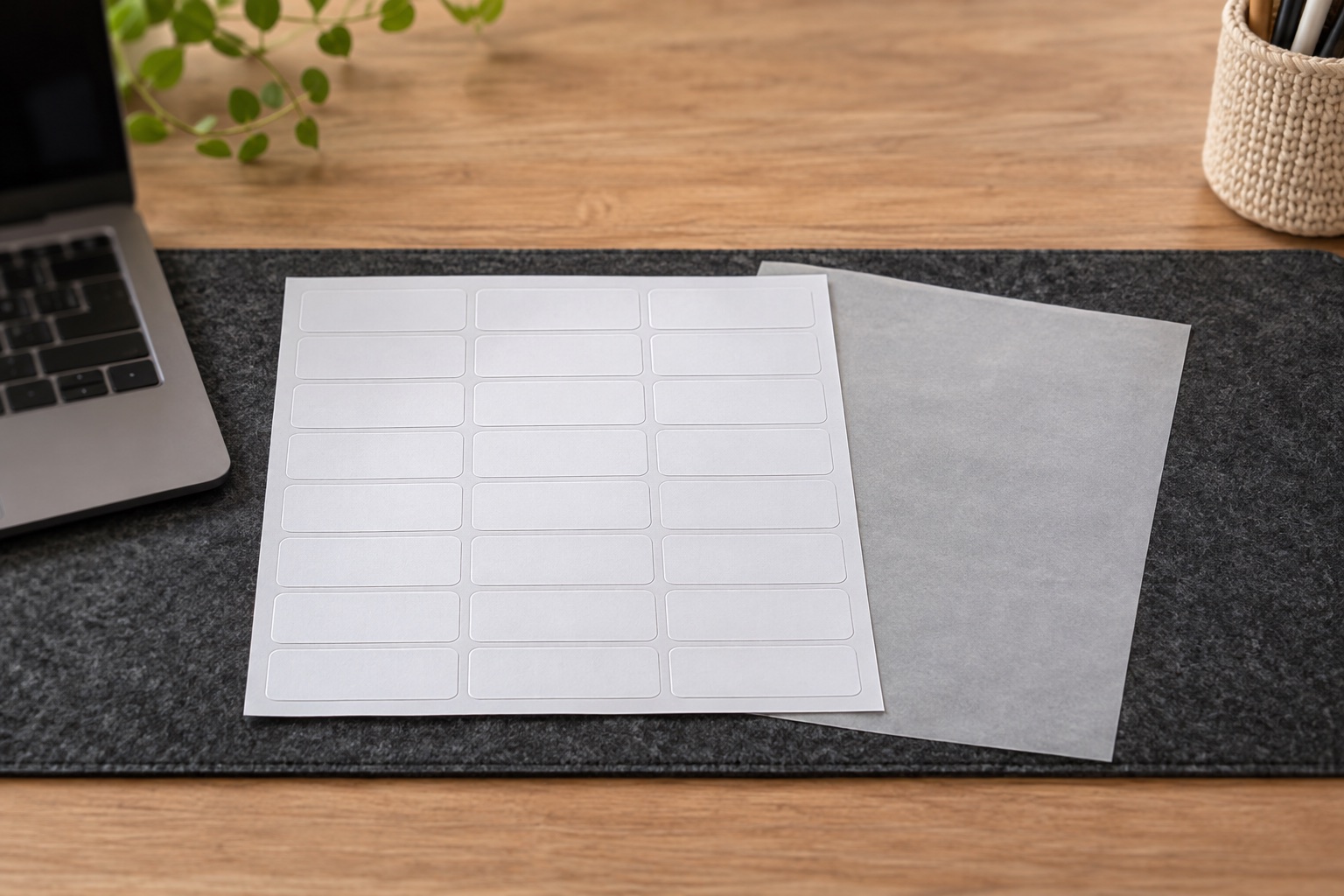
The featured Avery L7160-100 pack contains 100 A4 sheets with 21 labels on each sheet. Each label is 63.5 × 38.1 mm. This is laser stock, so check that your laser printer supports adhesive label sheets and use its recommended media feed. The corresponding L7160 template is a useful fixed example for an address merge. Avery L7160 specification · Avery L7160 template
For a 21-label A4 address run
Avery L7160-100 laser address labels
White A4 address sheets with 21 labels per sheet for a matching Word mail merge template.
Keep in mind. Use a laser printer that accepts A4 label stock. Proof the exact L7160 layout on plain paper before feeding a label sheet.
- 63.5 × 38.1 mm
- 21 labels per A4 sheet
- 100 sheets, 2,100 labels
Design the first label, then update the sheet
- Choose Mailings → Select Recipients → Use an Existing List and open the prepared workbook. Select the correct worksheet and check that Word recognises its heading row.
- In the first label, insert the required merge fields in address order. Use Insert Merge Field to place the fields you need. If you choose Address Block, inspect its preview and check the field mapping when a line is missing.
- Format this first label. Use a readable font, clear line spacing and enough room for the longest address. Keep the text inside the label's printable area.
- Choose Update Labels to copy the layout across the sheet. In the merge-field view, later labels include Next Record so that each position advances to the next recipient.
- Choose Preview Results and move through records. Check the longest name, an address with an extra line, a short address and any international postcode. After changing the first label's layout, update the labels again and repeat the preview. Microsoft label mail-merge workflow
If the same recipient appears throughout the sheet, return to the main merge document and inspect the fields and record rules. Keep the normal label-merge structure when copying the first design. A page of manually repeated address text will print the same text at each position.
Print the complete sheet on plain paper first
Use the same printer, paper tray and print settings you intend to use for the label sheets. Confirm the document and printer both use A4. Print one proof at 100% or actual size. Check the print dialog for fit-to-page options and Word's setting that scales between A4 and Letter sizes.
Hold the proof behind an unused label sheet against a window or light. Check all three columns and the top, middle and bottom rows. Look at the full address block, including descenders, postcode and longest line. Avery recommends this plain-paper test before printing on the actual product. Avery printing guidance
Use the pattern of the error to choose a correction
| What the proof shows | First check |
|---|---|
| Everything is displaced by a similar amount | Confirm the exact template, page margins and printer feed position. |
| Top row fits but each lower row drifts further | Check A4 versus Letter, scaling and the template's row spacing. |
| First column fits but later columns drift | Check the product code, column spacing and page scaling. |
| Text varies but overruns some labels | Shorten or reformat the first label and preview long records again. |
| The same recipient repeats | Check Update Labels and the Next Record rules in the merge document. |
| Addresses are missing characters or fields | Check the source data, selected worksheet and field mapping. |
Change one cause at a time and print another plain-paper proof. Check page size and scaling before editing label height, pitch or margins in a supplied template. If alignment is correct on plain paper but changes on the label sheet, review the printer's label media setting, tray and sheet guides. Use the printer's supported feed for adhesive sheets. Avery print alignment guidance
Print a fresh sheet and save the merge setup
When the preview and proof fit, choose Finish & Merge → Print Documents. To inspect the finished run first, choose Edit Individual Documents and review it before printing. Keep the main merge document for future runs, along with the prepared data source. Check the recipient count and later pages before releasing a large batch. Microsoft preview and finishing guidance
Load a fresh, complete label sheet in the orientation shown by your printer. Avery recommends one pass through the printer for each sheet. Group a small run together on a fresh sheet and keep the plain-paper proof as your alignment check. Save the working template after the layout is correct so the next run starts with the same product code and geometry. Avery label-sheet feeding guidance
Microsoft and Avery instructions
Common questions
Can I create a label mail merge in Word for the web?
Use desktop Word for Windows or Mac for this mail-merge workflow. Microsoft lists Mail Merge as a desktop feature. Open the document in the desktop app to connect the recipient list and create the merged labels.
Which Word template matches Avery L7160-100?
Choose Avery A4/A5 and L7160. The 100 identifies the pack's sheet count. The L7160 layout has 21 labels per A4 sheet, each 63.5 × 38.1 mm.
Why does the first row align while the bottom row prints too low?
Check A4 in both the document and printer settings, remove fit-to-page scaling and confirm the exact template code. A growing error down the sheet can come from the wrong page or label spacing.
Why does every mail-merge label show the same address?
Check that the document is a Labels merge, the recipient list is connected and Update Labels has distributed the first label's fields. Later labels need the Next Record rule so the merge advances through recipients.
How do I stop a postcode losing its leading zero?
Store the postcode as text in Excel before connecting the data. When importing a CSV, set that column to Text during import. If a zero has already disappeared, restore it from the original source and check the merged preview.