Choose A4 or 6×4 in Click & Drop
Start with the printer and stock you have. Open Settings → Label format in Click & Drop and check the preview as you change the template. Click & Drop offers both an integrated A4 layout and a separate label layout. Choose the separate template if you want 6×4 thermal output.
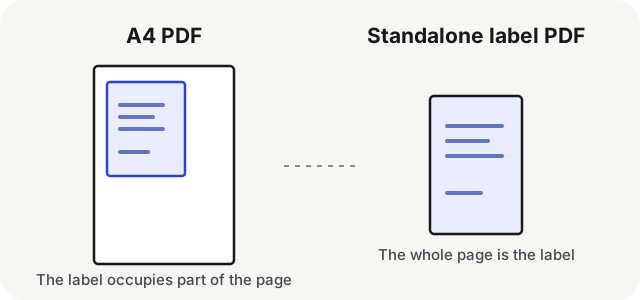
The integrated A4 layout puts the postage label and despatch note on the same sheet. Use stock laid out for that template, or follow the instructions for plain paper. For the separate A4 layout, Royal Mail lists one, two or four labels per page. Compare the positions in the preview with the cells on your sheet before loading adhesive stock. Personal accounts have a custom label positioning option for the separate A4 template.
Royal Mail also lists a 4×3 separate format. Choose it only if it suits the job and your stock. Check the despatch note and any customs document settings independently. The options differ by account, and an Online Business Account has features such as combining certain CN22 documents with the shipping label. The preview shows which documents your current settings will produce. Save the changes before generating the label.
Generate the postage PDF from the order
- Create or import the order and confirm the recipient details. Weigh and measure the packed parcel before selecting the service.
- Apply the postage to the order. For orders already at the postage-applied stage, open the ready-to-print orders, select the right order and generate its labels.
- Follow the payment step if you are using a personal account. An Online Business Account follows its own manifest process. Save the PDF generated for the order and keep any additional documents with the same parcel.
If nothing opens after generation, check your browser’s downloads and check that the correct order reached the required status. For imported orders, the import history can help separate an order data problem from a printing problem. If the file has downloaded, open it in a PDF reader and check it before sending anything to the printer.
Print one label before you run a batch
For A4, choose the A4 paper size and the appropriate tray or media setting. Use a plain-paper alignment test before printing to a sheet with adhesive cells. Hold the test against the sheet to check that the whole label fits in the intended cell, including the area around the barcode.
For thermal printing, match the generated 6×4 page, the actual stock and the paper setting in the printer. Use the original size and check the preview for clipped edges. Royal Mail cautions that resizing labels or changing contrast can interfere with scanning. If an edge is missing, check the template, orientation and printable area before changing the scale.
If you regularly choose 6×4 output, a four-inch thermal printer can save the cutting and attachment steps. The USB and Bluetooth MUNBYN RW403B can feed matching direct thermal fanfold labels. Check that the PDF, printer settings and label pack agree. This is a hardware example for that workflow. Royal Mail’s own printer setup guide is for Zebra.
Open-format labels with app printing
MUNBYN RealWriter RW403B label printer, white
A practical starting point for a dedicated parcel-label position using compatible open-format direct thermal stock. Choose USB for the supported desktop route or follow MUNBYN’s current phone-app instructions for Bluetooth printing.
Keep in mind. Bluetooth needs the supported application and file workflow. It does not establish Wi-Fi or AirPrint support. Leave room for the fanfold stack or an appropriate external roll holder.
- 4 × 6 inch label workflows
- USB / Bluetooth app printing
- Open-format direct thermal media
A fanfold stack feeds from behind a compatible external-feed printer, so leave room for the labels to travel without catching. This pack is for a matching direct thermal feed path. Check the printer’s media instructions if you use a machine that takes dedicated rolls.
Open-format fanfold supply
MUNBYN 4 × 6 inch fanfold shipping labels
A 500-label fanfold pack for compatible direct thermal shipping printers. The folded stack sits behind the printer and feeds without putting a large roll inside the machine.
Keep in mind. Check the actual printer’s width, gap sensing and feed instructions. These open-format labels are a different system from Brother DK holders and DYMO’s Series 5 authenticated rolls.
- 4 × 6 inch format
- 500 fanfold labels
- Direct thermal media
Correct the settings before reprinting
If the original label came out the wrong size or in the wrong part of an A4 sheet, change Label format in Click & Drop, save it and reprint the existing label from the order. Royal Mail says that reprinting this way uses the revised settings. Download the new PDF so you can tell it apart from the old one.
A smeared print or a paper jam calls for another copy of the same postage. A wrong address, weight or service is an order problem. Follow the reset, cancellation or refund route for your account and order status instead of editing the printed text. Use only one copy of the valid label for that parcel.
Attach the correct copy and keep your handover record
Put the label flat on the package with its address and barcode intact. Remove old labels from reused packaging. For plain paper, Royal Mail permits glue or clear tape as long as the label remains readable. Keep tape to the edges where possible and avoid seams or folds through the barcode. Keep the relevant despatch and customs paperwork separate until you know where each document goes.
Follow the handover instructions for the postage you bought and keep the appropriate receipt or proof. If your label came from a marketplace instead, go back to that order for its handover instructions. The Click & Drop template setting applies to labels generated there.
Royal Mail instructions
Common questions
Can I print Royal Mail labels on plain A4 paper?
Yes. Select the A4 output and print on a household or office printer. Royal Mail allows glue or clear sticky tape to attach the printout, provided the label stays undamaged and the barcode is readable.
Where is the 6×4 label setting in Click & Drop?
Open Settings, then Label format. Select the separate label and despatch note template, choose 6×4 and save. Check the despatch note and customs settings separately where they apply to your order.
Can I reprint a Click & Drop label in a different format?
Royal Mail says that an old label reprinted from Click & Drop reflects your new label settings. Change the format and request the reprint in your account. Opening the old PDF again keeps the format it already had.
Why does my Click & Drop label look tiny on my thermal printer?
Check the original PDF page size. A4 output shrunk to a 6×4 sheet can make the postage area too small. Generate the correct thermal output and choose the matching stock in your printer settings. Royal Mail cautions against resizing labels.
Is the proof of postage PDF proof that I sent the parcel?
The generated form is a document to use as Royal Mail directs. Save the actual handover receipt or accepted proof for the service you used. Printing the form does not record a handover.