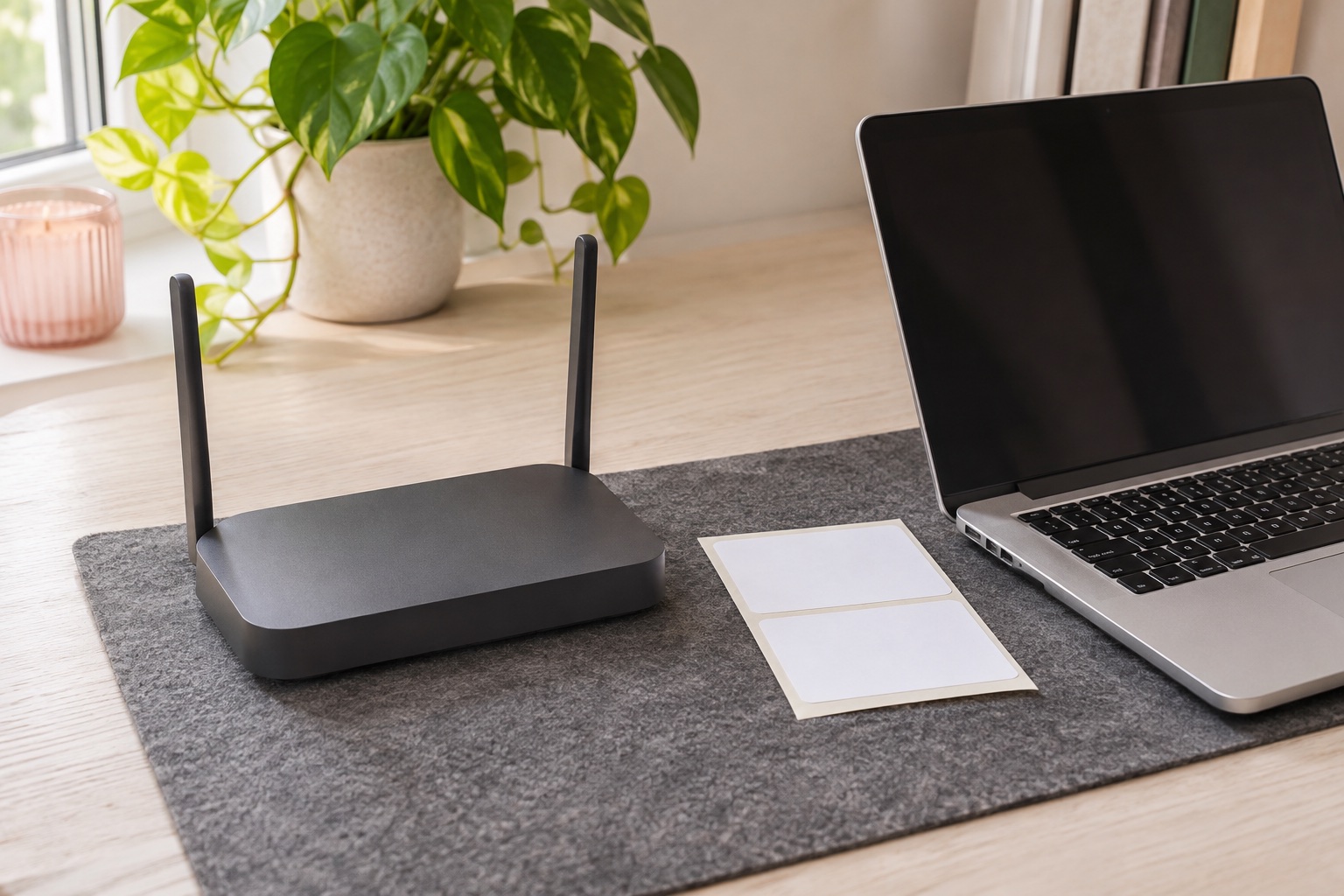
Choose how the QL-1110NWBc should connect
Read the model badge before downloading software. Brother has support pages that cover both the QL-1110NWB and QL-1110NWBc. Check the exact model and operating system in the downloads list because older guidance may cover software that differs by variant. The QL-1100c is the USB model in the range. It has a separate setup. Brother UK QL-1110NWBc support · Brother QL-1100c and QL-1110NWBc comparison
| Connection | When to use it | What to check |
|---|---|---|
| Wi-Fi through the router | Regular printing from a PC or Mac on your local network | Use the wireless network setup and check that the printer and computer can reach each other. |
| Wireless Direct | One device needs a direct Wi-Fi connection to the printer | Select the printer's own network name. The device may lose internet access while connected. |
| USB | Setup with a cable, or a simple test when network printing fails | Choose the USB queue for a USB test and the network queue for a wireless test. |
| Ethernet | The printer is near a router or wired network port | Connect it to the local network and add the wired printer in the supported workflow. |
For a packing bench used from more than one device, start with the router method, which Brother calls Infrastructure mode. Note your Wi-Fi network name and password, and place the printer within range. The printer uses 802.11b/g/n for Infrastructure mode. If your router separates its networks by band, check that a compatible 2.4 GHz network is available to the printer. A computer can be on a different band if both devices are on the same reachable local network. Guest networks often restrict communication between devices. Brother UK model specifications
Join your router's Wi-Fi on a Windows computer
- Turn on the printer and check that Wi-Fi is enabled. Brother's guide uses the Wi-Fi button to switch it on. Keep a USB data cable nearby if the installer asks for a temporary connection.
- On Brother's UK support site, choose your Windows version and download the software offered for the model. Start the installer and choose Wireless Network Connection when asked how to connect.
- Follow the prompt for setting up the wireless network. If the installer asks whether you have a USB cable for installation, select the USB-assisted option and connect it when prompted. Select the intended network and enter its key.
- Complete the installer and disconnect the temporary USB cable when instructed. Check Settings → Bluetooth & devices → Printers & scanners for the Brother printer. If you see two Brother queues, confirm which one uses the network before printing.
- Print a short non-postage label. Check that it comes from the wireless queue with the USB cable disconnected.
Brother also documents a WPS route for routers where that feature is enabled and appropriate. The standard wireless installer is the starting point if your router has no WPS button. Brother instructions for Wi-Fi through an access point · Brother wireless setup options
Set up the Mac queue and check AirPrint
Use Brother's downloads and wireless setup instructions for your exact macOS version. Where Brother offers its installer for the Mac, select the wireless connection during setup and follow the prompts to join the printer to the network. If the printer is already on your local network, open System Settings → Printers & Scanners → Add Printer, Scanner or Fax, select the Brother printer and check the available option in Use. Brother documents AirPrint for this model. Check which media sizes your chosen queue exposes before relying on it for shipping labels. Brother AirPrint guidance for Mac · Apple guidance on adding a printer on Mac
If you choose Wireless Direct, use the printer's own SSID and network key as shown in Brother's Printer Setting Tool and follow the computer or mobile instructions for the exact setup. Bluetooth is a separate connection option. Select a Wi-Fi or AirPrint workflow when you want the printer to be reached over the local network. Brother Wireless Direct instructions
Print one correctly sized label over Wi-Fi
The QL-1110NWBc takes supported Brother DK media. One compatible option is DK-11247, which is a pre-cut 103.6 × 164.3 mm label. Select the actual stock in your test layout and printer settings. Standard 4 × 6 inch media measures 101.6 × 152.4 mm, so the two formats need separate checks against your actual postage PDF. Brother QL-1110NWBc media specifications · Brother DK-11247 details
Wide Brother QL shipping labels
Brother DK-11247 shipping labels
A pre-cut paper roll for the wider Brother QL shipping machines. Its 103 mm-class label gives a full-size parcel address room without cutting a continuous roll by hand.
Keep in mind. Use the exact compatible QL model and label template. The wider DK-11247 format does not fit the narrower QL-800, and its die-cut size differs from a generic 100 × 150 mm label.
- 103 × 164 mm nominal
- 180 pre-cut labels
- Brother DK holder
Use a single label with plain text such as TEST PRINT and a short line to check alignment. Open the same print dialog or label app you expect to use for later jobs. Check the chosen printer, paper size, orientation and scale. If the sample prints through the network but a parcel PDF is cropped, keep the working connection and check the PDF format and paper settings.
Check where discovery or printing stops
If the installer cannot find the printer, first check which network it joined and whether the computer can see devices on that network. A lit Wi-Fi lamp can coexist with a discovery problem. Check for guest network isolation or a move to a new router. If a USB print works but the network test fails, focus on the selected queue and connection. If the job reaches the printer and produces a blank or off-centre label, check the media and print settings before changing network setup. Brother help when Wi-Fi is lit and communication fails
Manufacturer sources
Common questions
What is the difference between Wi-Fi and Wireless Direct on the QL-1110NWBc?
Infrastructure mode connects the printer through your router or access point. With Wireless Direct, you join the printer’s own Wi-Fi network from the printing device.
Does the QL-1110NWBc need a USB cable for Wi-Fi setup?
Some Brother installer workflows use a USB data cable temporarily to configure the wireless settings. Brother also documents other setup methods, including WPS on a supported router.
Can I add the QL-1110NWBc on a Mac using AirPrint?
Brother lists AirPrint for the QL-1110NWBc. Connect the printer to a network your Mac can reach and check the options when you add the queue. Confirm it offers your intended media size.
Why is the Brother Wi-Fi light on but the printer is missing?
Check whether the computer can reach the network the printer joined. A guest network, router change or Wireless Direct connection can affect discovery. Confirm the selected queue before retrying.
Which roll can I use to test the Brother QL-1110NWBc?
Use a supported Brother DK roll and select its actual size. DK-11247 is a compatible pre-cut shipping label, so select that paper setting when it is loaded.